WHAT YOU GET
A Docking Workspace Inside Your Avalonia App
One control placed in a window. You add panels in code, give each one your own control, and the user arranges them.
Each TsgcDockPanel has a Name, a Caption, an icon, a Kind (dpkTool or dpkDocument) and the Control it shows. Tool panels start on the side of their Placement, DockSize wide, and panels with the same GroupName tab together.
Your own controls
The content of a panel is an ordinary Avalonia Control. It becomes a logical and visual child of the dock site, so the DataContext flows from your window, and it is arranged and shown while its panel is the active one. A hidden panel keeps its control as a hidden child.
Drop guides with preview
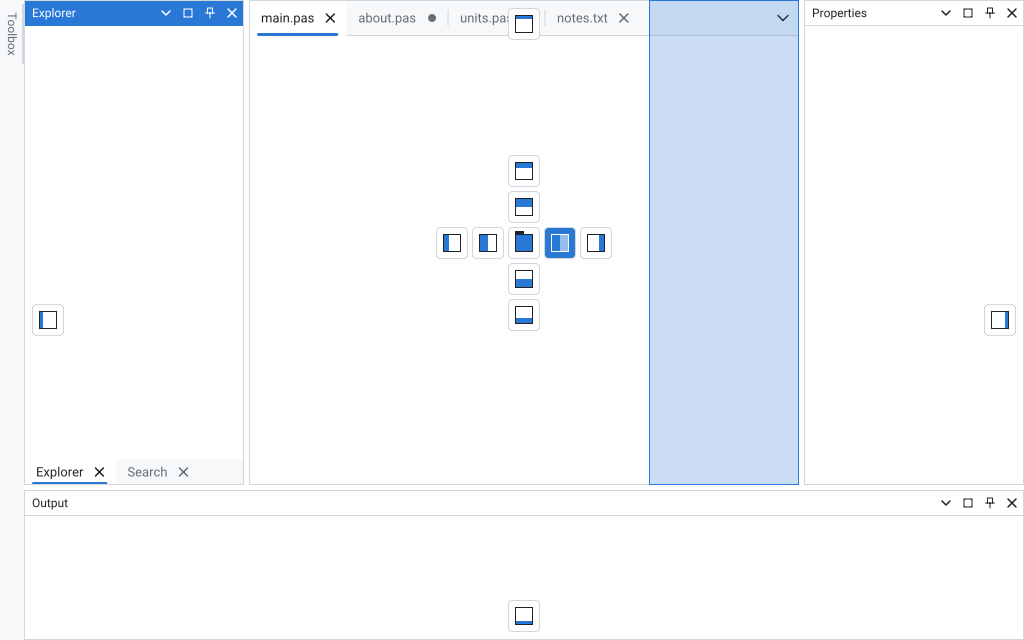
While a caption or a tab is dragged, a compass on the group under the pointer splits that group on a side or tabs the panel into it, the edge guides dock it on an edge of the whole site, and a preview rectangle in the accent colour shows the room it will take. Esc cancels the drag.
Splitters
Groups sit in nested splits, side by side or stacked, with splitters between them. A drag resizes the neighbours live, and every group keeps MinPanelSize at least. SplitterSize sets the width of the splitters.
Auto hide flyouts
The pin button sends a tool panel to the strip of its side. Hovering its tab for AutoHideDelay milliseconds, or clicking it, slides the panel out as a flyout above the content, and it slides back when the user works elsewhere. In code, Model.SetAutoHide does the same.
Floating windows
Drop a panel away from the guides, double click its caption or choose Float in its menu, and it moves to a borderless Avalonia window owned by your window, outside the taskbar. A float holds a tree of its own, so more panels dock into it. Each float uses the scale of its own monitor.
Document groups
The document area has tab strips with pinned and modified tabs, close buttons, a new tab button (DocumentShowNewButton, OnNewDocument) and a tab list button. Dragging a document tab to a side arm splits it into a new document group, and a double click on a tab maximizes its group.
Dock keys and panel menus
Ctrl+F6 cycles the documents, Alt+F7 the tool panels, Shift+Esc hides the active tool panel and Alt+Minus opens the panel menu with Float, Dock, Auto Hide, Hide and Close. Ctrl+Tab, Ctrl+W and Ctrl+F4 are handled as dock keys as well. With TsgcAvaloniaCommandPalette the dock manager also lists one Window command per panel.
Accessibility, RTL and HiDPI
Screen readers see the site through UI Automation as a pane named "Dock site", with panes for the groups, tab items for the strips and separators with a range value for the splitters. With FlowDirection right to left the whole site is mirrored. The chrome is drawn at the render scaling of the window.
Layout as JSON
SaveLayout, SaveLayoutToFile and SaveLayoutToStream write the arrangement, the LoadLayout methods read it back and clamp floats to the work area of the screens. The JSON text is identical to the one of the Delphi model. OnRestorePanel creates the control of a panel that a saved layout names and your session has not opened yet.
Themes, Fluent included
Theme switches the dock manager between light, dark, high contrast and custom themes, and AccentColor sets the accent of the active caption. Set sgcUIApplication.ThemePreset to the Fluent preset and the dock manager paints with the WinUI 3 colours, like every other sgcUI control.
Localized texts
The captions of the dock chrome (Close, Auto Hide, Maximize, Float, Dock, Hide, "No open documents" and the names that screen readers hear) go through sgcUILang, and the sgcUI translation packs cover Spanish, German, French, Italian, Dutch, Polish, Portuguese, Turkish, Japanese, Korean and Chinese.