


Delphi, C++ Builder & .NET Part of sgcUI

sgcWizard, the Wizard and Stepper for Delphi, C++ Builder & .NET

Guide your users through setup, onboarding and checkout one clear step at a time. Every page you add becomes a step in the stepper, Back, Next, Finish and Cancel are built in, and a single event lets you stop the move until the page is valid.

VCL, FireMonkey, WinForms, WPF, AvaloniaDelphi 7 to 13 and C++ Builder 2007 to 13Every feature in the free .NET Community editionIncluded in sgcUI Enterprise
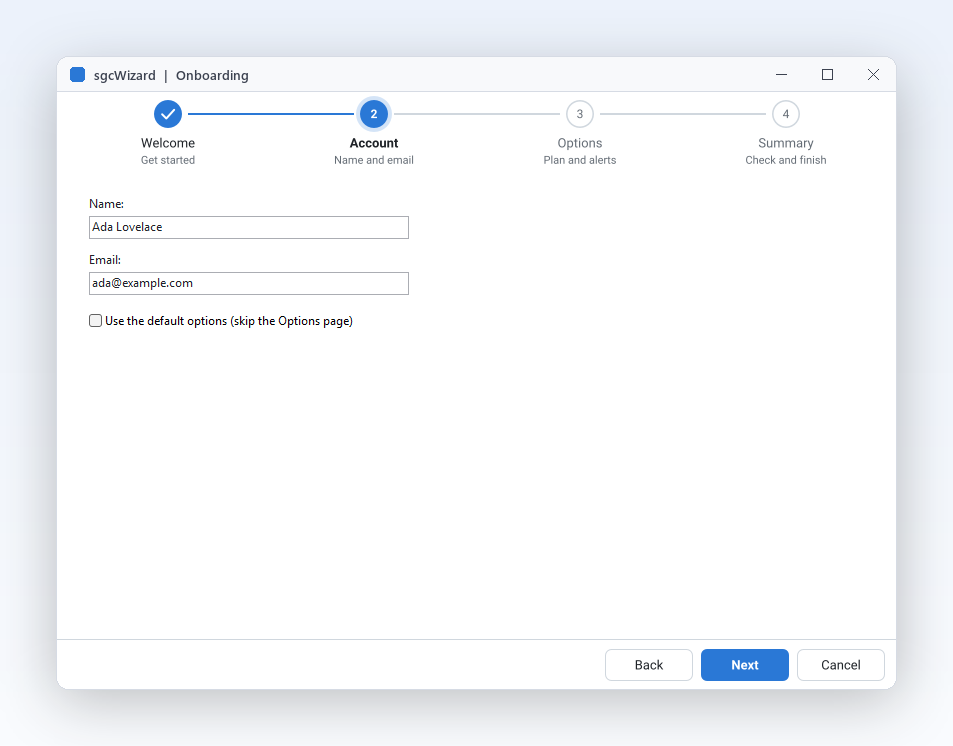
Onboarding wizard on step 2 of 4, Account, with the stepper on top and Back, Next and Cancel buttons

Everything a Wizard Needs

Twelve features that turn a long form into a guided flow your users finish, with the rules and the look of your application.

Pages, steps and rules

The structure of a wizard is ready: you add the pages and decide the rules.

Multi step forms with a built in stepper

Pages, steps and rules

Multi step forms with a built in stepper

Long forms overwhelm users, while the same fields split into a few clear steps get finished. TsgcVCLWizard turns each page into a step: AddPage creates a page and its entry in the stepper band at the same time, with a caption, a description line and an optional glyph. The band shows where the user is and what is left, and the Back, Next, Finish and Cancel bar is already there. Each page is a container, so you design its content with ordinary controls, and the wizard moves the focus to the first control whenever a page opens.

  • AddPage creates a TsgcVCLWizardPage and its step
  • Caption, Description and StepGlyph label each step
  • ActivePageIndex and ActivePage switch pages directly from code
  • Next, Back and GoToPage move exactly like the buttons do
Read the help topic

Pages, steps and rules

Stop the user until the page is valid

Letting a user reach the summary with an empty e-mail address means an error later, far from the field that caused it. OnBeforePageChange fires before every move, whether the user pressed Next, Back or Finish, clicked a step, or your code called GoToPage. It tells you the page being left and the page about to open, and a var aAllow flag stops the move. Because every forward move has a higher target index, one test validates the page whatever the user pressed. When you veto, nothing changes, so you show the reason and put the focus on the field.

  • OnBeforePageChange(Sender, aFromIndex, aToIndex, aAllow) can veto any move
  • aToIndex = PageCount means the user pressed Finish
  • Testing aToIndex < aFromIndex lets backward moves through
  • OnPageChanged fires after the move, for example to fill a summary page
Read the help topic
Skip steps that do not apply

Pages, steps and rules

Skip steps that do not apply

Real flows branch. A customer who picks standard shipping does not need the courier page, and a private account has no company step. Set Skip on a page and it stays in the wizard, but Next and Back jump over it and the stepper draws its step as skipped with a dashed outline, so users still see the whole journey. Skip can change at any moment, typically from a check box or a choice on an earlier page. The Back button is disabled automatically when no earlier page can be reached, so users never land on a page that does not apply to them.

  • Skip on a TsgcVCLWizardPage takes it out of the path
  • Skipped steps are drawn in the wssSkipped state
  • GoToPage only moves to pages that are not skipped
  • The Onboarding demo skips its Options page from a check box
Read the help topic
Finish and Cancel do what you decide

Pages, steps and rules

Finish and Cancel do what you decide

A wizard usually ends by saving something, and you want that code in one place. On the last page the Next button shows the Finish caption and becomes the default button. Pressing it, pressing Enter or calling Finish runs your validation first and then fires OnFinish, where you save the data, close the form or set the ModalResult of a dialog. The Cancel button, the Escape key and a call to Cancel fire OnCancel, so you can ask before discarding the work. The wizard never closes anything by itself, so the flow stays under your control.

  • OnFinish runs after OnBeforePageChange allows the finish
  • OnCancel handles the Cancel button, the Escape key and Cancel
  • ShowCancel hides the Cancel button for flows that must be completed
  • FinishCaption sets the text of the last Next button
Read the help topic

A stepper that explains itself

The progress band tells users where they are, what is done and what went wrong.

Stepper on top, on the left or hidden

A stepper that explains itself

Stepper on top, on the left or hidden

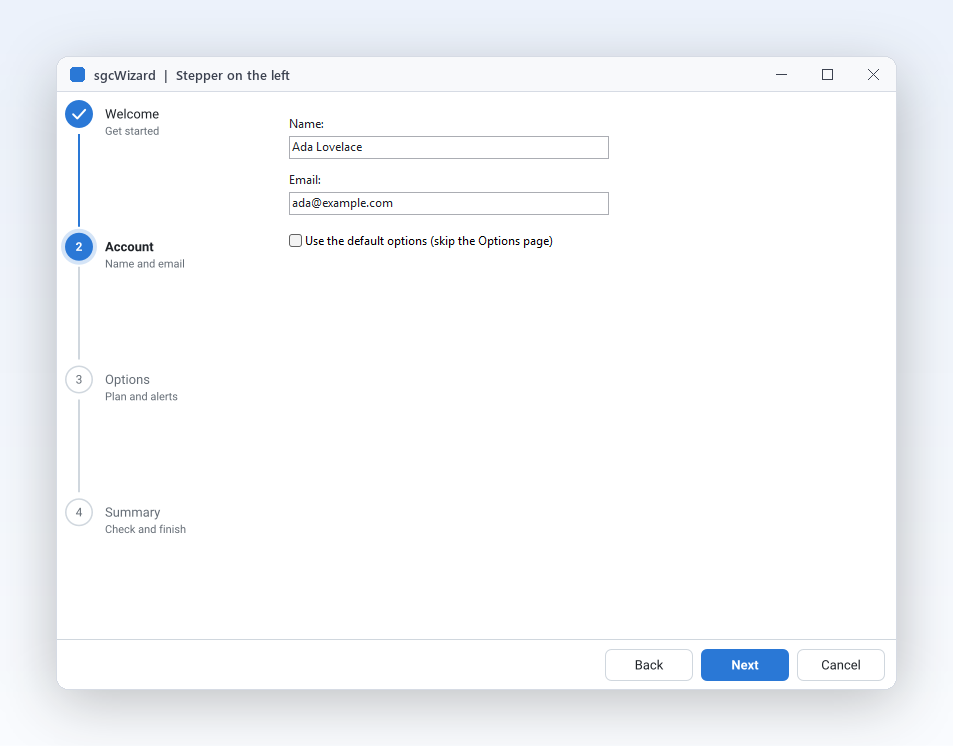
Short flows read best with the steps across the top, while longer ones with descriptions fit better in a column on the left, like an installer. StepperPosition moves the band without touching your pages: wspTop shows a horizontal band 80 logical pixels high, wspLeft a vertical band 200 pixels wide, and wspNone hides it for a plain paged dialog. The button bar stays at the bottom. The Onboarding demo has a combo that switches the position at run time, so you can compare the three layouts with your own content in seconds.

  • StepperPosition takes wspTop, wspLeft or wspNone
  • The Orientation of a stepper is woHorizontal or woVertical
  • CircleSize and ConnectorThickness size the step markers and lines
  • ShowDescriptions shows or hides the second line of each label
  • Right to left for Arabic and Hebrew: the stepper side, the step order, the connectors and the Back and Next buttons with their arrows are mirrored
Read the help topic
Clear step states with colour

A stepper that explains itself

Clear step states with colour

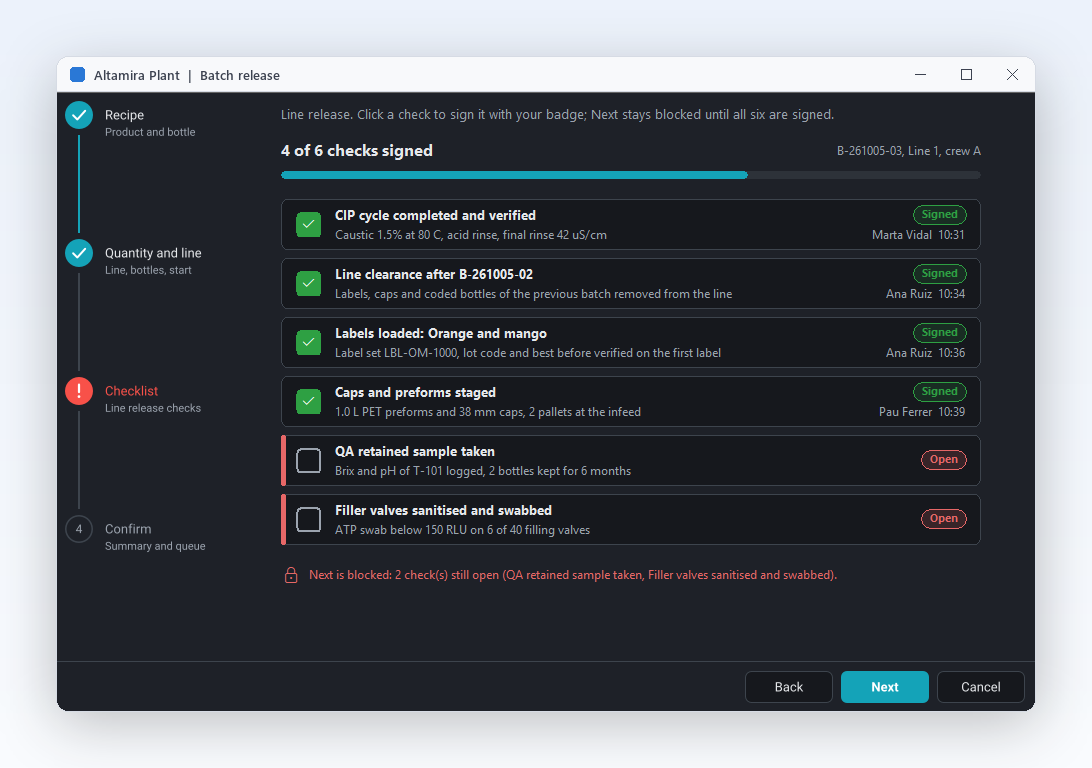
Users scan a stepper in a second, so each state must be obvious. Pending steps are outlines with a muted number, the active step is an accent disc with a soft halo and a bold caption, completed steps carry a check mark, errors are a red disc with an exclamation mark, and skipped steps have a dashed outline. With AutoStates on, setting ActiveIndex completes the steps before it and leaves the ones after it pending, while error and skipped states survive. Turn AutoStates off when your application decides every state itself.

  • wssPending, wssActive, wssCompleted, wssError and wssSkipped
  • AutoStates derives the states from ActiveIndex
  • A disabled step is drawn with faded colours
  • AccentColor recolours the active and completed steps
Read the help topic
A standalone stepper for checkout flows

A stepper that explains itself

A standalone stepper for checkout flows

Not every process is a wizard. A checkout, an order status page or a ticket lifecycle needs the progress indicator without the pages. TsgcVCLStepper is the same band as a control of its own, horizontal or vertical, with captions, descriptions and the five states. Set Clickable and users jump back to a completed step with a click or the arrow keys, while OnStepClick lets you veto the move. The Stepper demo shows a horizontal and a vertical stepper side by side, with buttons that mark the active step as an error or as skipped.

  • TsgcVCLStepper and TsgcFMXStepper work without a wizard
  • Steps is a collection edited with the standard collection editor
  • Clickable and OnStepClick turn completed steps into navigation
  • ActiveIndex moves the progress from your own code
Read the help topic

Fits your application

Your language, your designer, your theme and your framework.

Your wording on every button

Fits your application

Your wording on every button

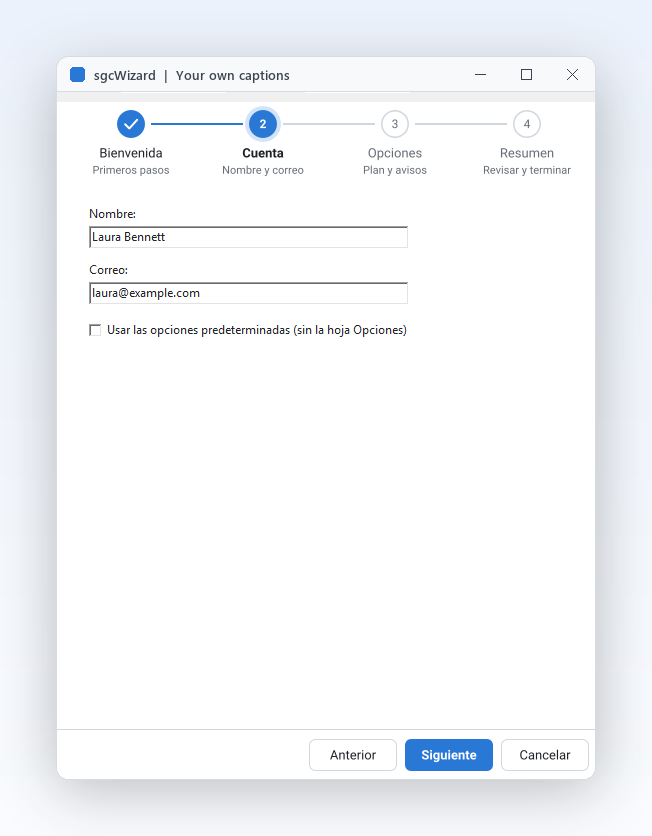
An English Next button in a Spanish application looks unfinished. The four captions of the button bar are published properties with the defaults Back, Next, Finish and Cancel. Set them in the Object Inspector, translate them with the usual resource tools of the IDE, or assign them in code from your own translation table. A caption is stored in the form file only when it differs from the default, and the buttons grow to fit longer words. The step labels come from the Caption and Description of the pages, so they are translated together with the pages.

  • BackCaption, NextCaption, FinishCaption and CancelCaption
  • ShowCancel removes the Cancel button
  • Step labels follow the Caption and Description of each page
  • The help topic sets Anterior, Siguiente, Finalizar and Cancelar as an example
Read the help topic

Fits your application

Design every page visually in the IDE

Wizards are forms, and forms are best designed in the form designer. The SGC Wizard palette page registers the wizard and the stepper for VCL and FireMonkey. Right click the wizard and choose Add Page: a new page is created, shown and selected, ready for your edits, labels and check boxes. Next Page and Previous Page move between the pages in the designer, and a click on a step of the band shows its page. Only the active page is visible, and the page shown at design time is the one stored in the form file.

  • Add Page, Next Page and Previous Page verbs on the context menu
  • TsgcVCLWizard, TsgcVCLStepper, TsgcFMXWizard and TsgcFMXStepper on the palette
  • The band and the button bar are internal and never clutter the form file
  • The Steps of a standalone stepper use the standard collection editor
Read the help topic
Themes and keyboard, Enter is Next

Fits your application

Themes and keyboard, Enter is Next

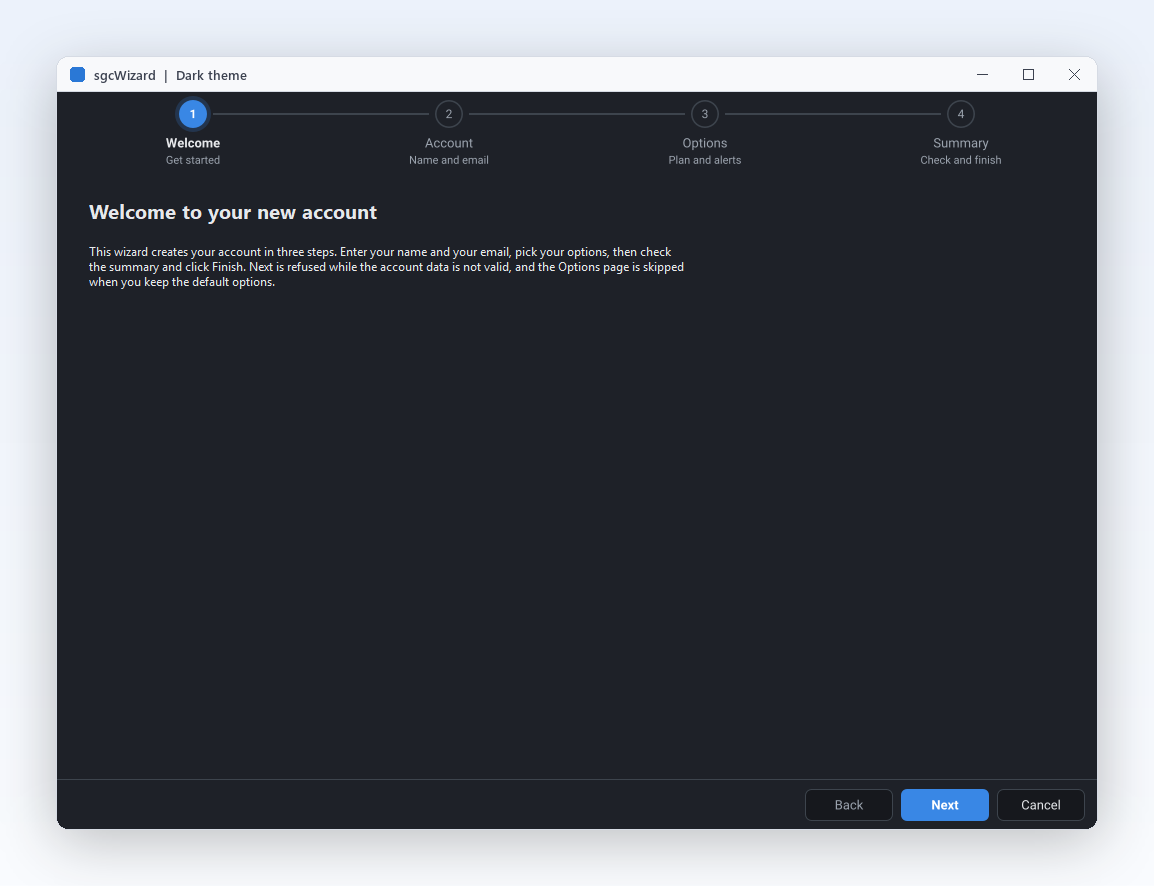
A wizard should feel like the rest of the application, with the mouse or without it. Theme switches between the light and dark sgcUICore themes, and AccentColor sets the colour of the active steps, the finished connectors and the default button. The wizard also applies the theme to the controls on its pages, so a TLabel, a TEdit or a TCheckBox stays readable on a dark page. While the focus is inside the wizard, Enter is Next, or Finish on the last page, and Escape is Cancel, but a memo still keeps its Enter for a new line.

  • Theme takes utDefault (follow the application theme), utLight, utDark or utCustom
  • AccentColor is an ARGB colour, and 0 keeps the accent of the theme
  • Child controls with their own Theme property get the theme of the wizard
  • A focused stepper moves with the arrow keys while Clickable is on
Read the help topic
Stepper images for docs and tests

Fits your application

Stepper images for docs and tests

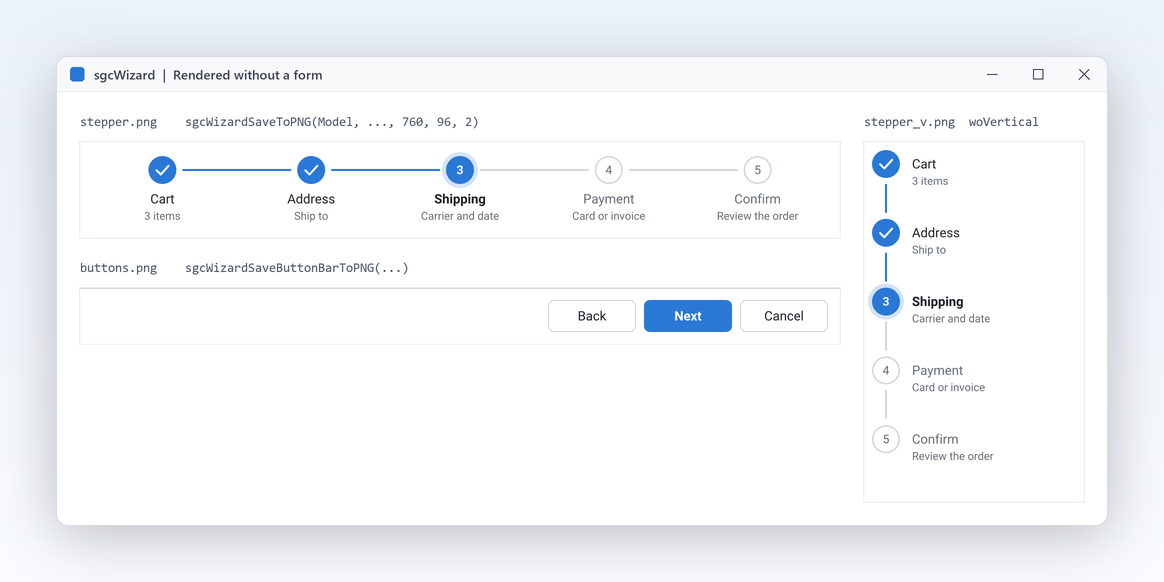
Documentation, e-mails and visual regression tests often need a picture of the steps rather than a live control. The renderer in sgcWizard_Render paints a TsgcStepperModel and the button bar with no window and no VCL or FireMonkey, so a console program, a service, a unit test or a web server can produce the same stepper as an image. It builds on every platform, Linux64 included. Width and height are logical pixels and a scale factor gives sharp images: 640 by 100 at scale 2 is a 1280 by 200 PNG.

  • sgcWizardSaveToPNG and sgcWizardSaveToSVG write a file or a stream
  • sgcWizardRender paints on any sgcUICore canvas
  • sgcWizardSaveButtonBarToPNG and sgcWizardSaveButtonBarToSVG draw the button bar
  • In .NET the esegece.sgcWizard.Rendering package writes PNG on Windows, Linux and macOS
Read the help topic

Fits your application

Bind it to your view model in WPF and Avalonia

WPF and Avalonia developers expect to bind, not to write code behind. In those hosts the user facing properties of the wizard, its pages and the stepper are dependency properties or Avalonia properties, so they bind to a view model, take values from a Style and can be animated. ActivePageIndex binds TwoWay by default, because the wizard changes it itself on Next, Back and step clicks, so your view model always knows the current step. The WinForms controls keep plain properties, and all three hosts use the Delphi names.

  • TsgcWpfWizard and TsgcAvaloniaWizard, with their pages and steppers
  • A static field such as ActivePageIndexProperty for every bindable property
  • Events keep the Delphi names, such as OnBeforePageChange, as delegate properties
  • In WPF and Avalonia a page holds one child; in WinForms a page is a container
Read the help topic

See sgcWizard in action

sgcWizard inside the sgcUI suite demos: complete applications that run offline with built-in simulated data.

Who Builds with sgcWizard

Onboarding and first run setup

The first minutes decide whether a new user stays. Split account creation, preferences and a summary into four short pages, validate the name and e-mail in OnBeforePageChange before the user moves on, and skip the options page for users who want the defaults. OnPageChanged fills the summary and OnFinish saves the account. The Onboarding demo is exactly this flow, with a light and dark switch and a stepper position selector to try.

  • Validation
  • Skipped pages
  • Finish and Cancel
Run the Onboarding demo

Checkout and order entry

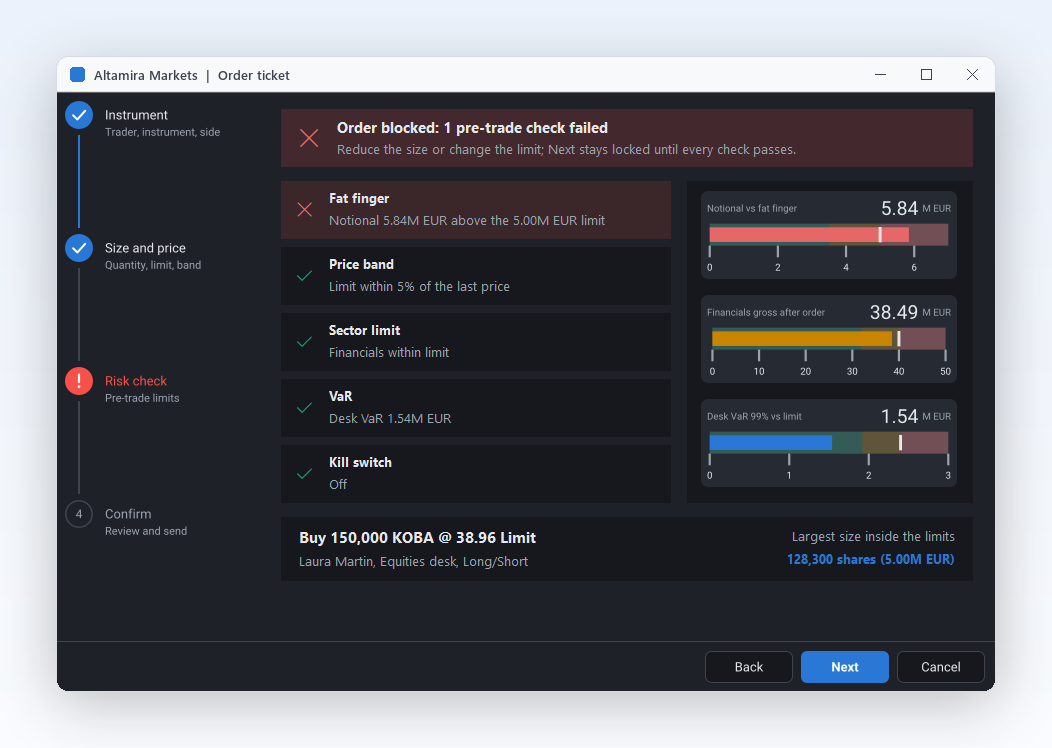
Order entry follows a fixed path: cart, address, shipping, payment and confirmation. Use the wizard when each step is a page of fields, or put a standalone stepper above a form you already have. Completed steps become clickable shortcuts back, a failed payment shows as a red error step, and a shipping step that does not apply stays visible with a dashed outline. The Stepper demo shows every state, horizontal and vertical.

  • Standalone stepper
  • Step states
  • Clickable steps
Run the Stepper demo

Configuration and import assistants

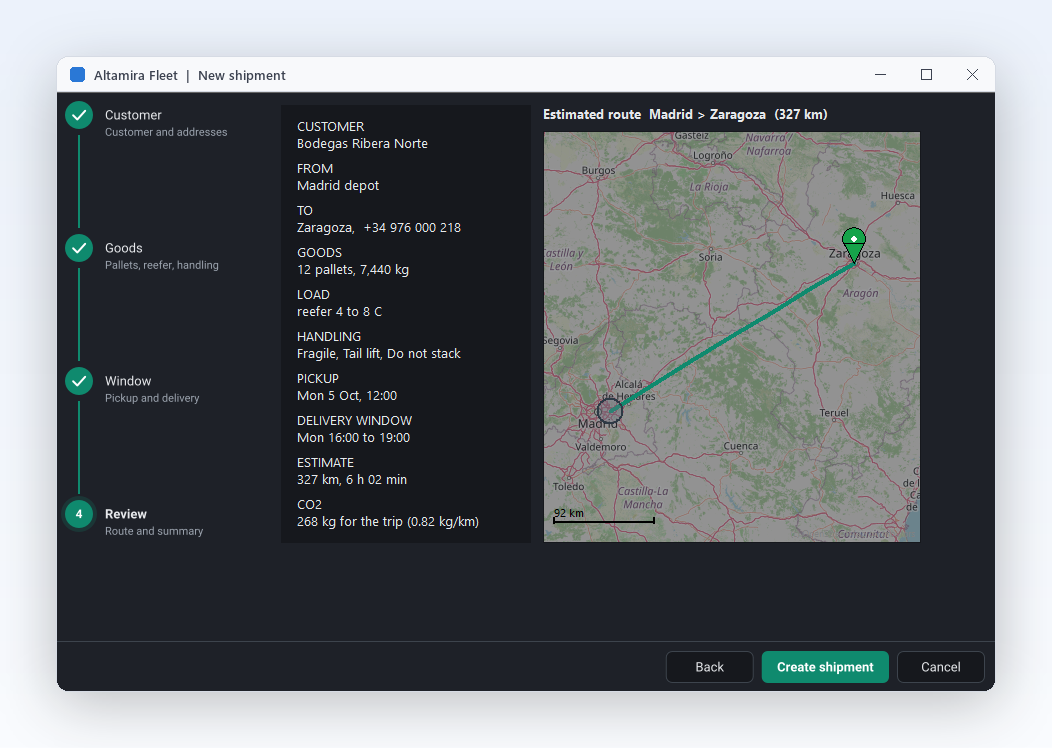
Technical tools need assistants for jobs users do rarely: connecting to a database, importing a file, setting up a device. A wizard with the stepper on the left lists every step with a description, OnBeforePageChange checks the input before the user moves on, and the button captions follow the language of the tool. The same wizard runs in FireMonkey, as the OnboardingFMX demo shows, and in WinForms, WPF and Avalonia.

  • Stepper on the left
  • Validation
  • Button captions
Run the OnboardingFMX demo

A Wizard in a Few Lines

The same API in Delphi, C++ Builder and C#: add the pages, mark one as optional, and validate before the user leaves the Account page.

procedure TMainForm.CreateWizard;
var
  oPage: TsgcVCLWizardPage;
begin
  // the wizard fills the form: stepper on the left, buttons at the bottom
  FWizard := TsgcVCLWizard.Create(Self);
  FWizard.Parent := Self;
  FWizard.Align := alClient;
  FWizard.StepperPosition := wspLeft;
  FWizard.Theme := utDark;
  FWizard.NextCaption := 'Continue';
  FWizard.FinishCaption := 'Create account';
  // every page is a step of the stepper
  oPage := FWizard.AddPage('Welcome');
  oPage.Description := 'Start here';
  oPage := FWizard.AddPage('Account');
  oPage.Description := 'Your details';
  FName := TEdit.Create(Self);
  FName.Parent := oPage;
  FName.SetBounds(24, 24, 240, 24);
  // an optional page the user can skip: Next and Back jump over it
  FOptions := FWizard.AddPage('Options');
  FOptions.Description := 'Optional';
  FOptions.Skip := True;
  oPage := FWizard.AddPage('Done');
  oPage.Description := 'Summary';
  FWizard.ActivePageIndex := 0;
  FWizard.OnBeforePageChange := WizardBeforePageChange;
  FWizard.OnFinish := WizardFinish;
end;

procedure TMainForm.WizardBeforePageChange(Sender: TObject;
  aFromIndex, aToIndex: Integer; var aAllow: Boolean);
begin
  // veto: leaving Account forwards needs a name
  if (aFromIndex = 1) and (aToIndex > aFromIndex) then
    aAllow := Trim(FName.Text) <> '';
end;

procedure TMainForm.WizardFinish(Sender: TObject);
begin
  ShowMessage('Welcome, ' + FName.Text);
end;
#include <vcl.h>
#include <Vcl.StdCtrls.hpp>
#include "sgcUICore_Theme.hpp"
#include "sgcWizard_Model.hpp"
#include "sgcWizard_VCL.hpp"

class TWizardHandler : public TObject
{
public:
  TEdit *Name;
  void __fastcall BeforePageChange(TObject *Sender, int aFromIndex,
    int aToIndex, bool &aAllow);
  void __fastcall Finish(TObject *Sender);
};

void __fastcall TWizardHandler::BeforePageChange(TObject *Sender,
  int aFromIndex, int aToIndex, bool &aAllow)
{
  // veto: leaving Account forwards needs a name
  if ((aFromIndex == 1) && (aToIndex > aFromIndex))
    aAllow = !Name->Text.Trim().IsEmpty();
}

void __fastcall TWizardHandler::Finish(TObject *Sender)
{
  ShowMessage("Welcome, " + Name->Text);
}

void __fastcall CreateWizard(TForm *Form, TWizardHandler *Handler)
{
  // the wizard fills the form: stepper on the left, buttons at the bottom
  TsgcVCLWizard *Wizard = new TsgcVCLWizard(Form);
  Wizard->Parent = Form;
  Wizard->Align = alClient;
  Wizard->StepperPosition = wspLeft;
  Wizard->Theme = utDark;
  Wizard->NextCaption = "Continue";
  Wizard->FinishCaption = "Create account";
  // every page is a step of the stepper
  TsgcVCLWizardPage *Page = Wizard->AddPage("Welcome");
  Page->Description = "Start here";
  Page = Wizard->AddPage("Account");
  Page->Description = "Your details";
  Handler->Name = new TEdit(Form);
  Handler->Name->Parent = Page;
  Handler->Name->SetBounds(24, 24, 240, 24);
  // an optional page the user can skip: Next and Back jump over it
  Page = Wizard->AddPage("Options");
  Page->Description = "Optional";
  Page->Skip = true;
  Page = Wizard->AddPage("Done");
  Page->Description = "Summary";
  Wizard->ActivePageIndex = 0;
  Wizard->OnBeforePageChange = Handler->BeforePageChange;
  Wizard->OnFinish = Handler->Finish;
}
using System;
using System.Windows.Forms;
using esegece.sgcUICore;
using esegece.sgcWizard;

internal class MainForm : Form
{
    private readonly TsgcWinFormsWizard Wizard = new TsgcWinFormsWizard();
    private readonly TextBox txtName = new TextBox();

    public MainForm()
    {
        // the wizard fills the form: stepper on the left, buttons at the bottom
        Wizard.Dock = DockStyle.Fill;
        Wizard.StepperPosition = TsgcWizardStepperPosition.wspLeft;
        Wizard.Theme = TsgcUITheme.utDark;
        Wizard.NextCaption = "Continue";
        Wizard.FinishCaption = "Create account";
        Controls.Add(Wizard);
        // every page is a step of the stepper
        TsgcWinFormsWizardPage oPage = Wizard.AddPage("Welcome");
        oPage.Description = "Start here";
        oPage = Wizard.AddPage("Account");
        oPage.Description = "Your details";
        txtName.SetBounds(24, 24, 240, 24);
        oPage.Controls.Add(txtName);
        // an optional page the user can skip: Next and Back jump over it
        oPage = Wizard.AddPage("Options");
        oPage.Description = "Optional";
        oPage.Skip = true;
        oPage = Wizard.AddPage("Done");
        oPage.Description = "Summary";
        Wizard.ActivePageIndex = 0;
        Wizard.OnBeforePageChange = WizardBeforePageChange;
        Wizard.OnFinish = sender => MessageBox.Show("Welcome, " + txtName.Text);
    }

    private void WizardBeforePageChange(object sender, int aFromIndex, int aToIndex, ref bool aAllow)
    {
        // veto: leaving Account forwards needs a name
        if (aFromIndex == 1 && aToIndex > aFromIndex)
            aAllow = txtName.Text.Trim() != "";
    }
}
dotnet add package esegece.sgcWizard.WinForms

Run the sgcWizard Demos

Onboarding and Stepper ship for Delphi VCL and for C++ Builder, OnboardingFMX for Delphi FireMonkey, and the .NET edition has Onboarding and Stepper for WinForms, WPF and Avalonia.

Onboarding

Onboarding

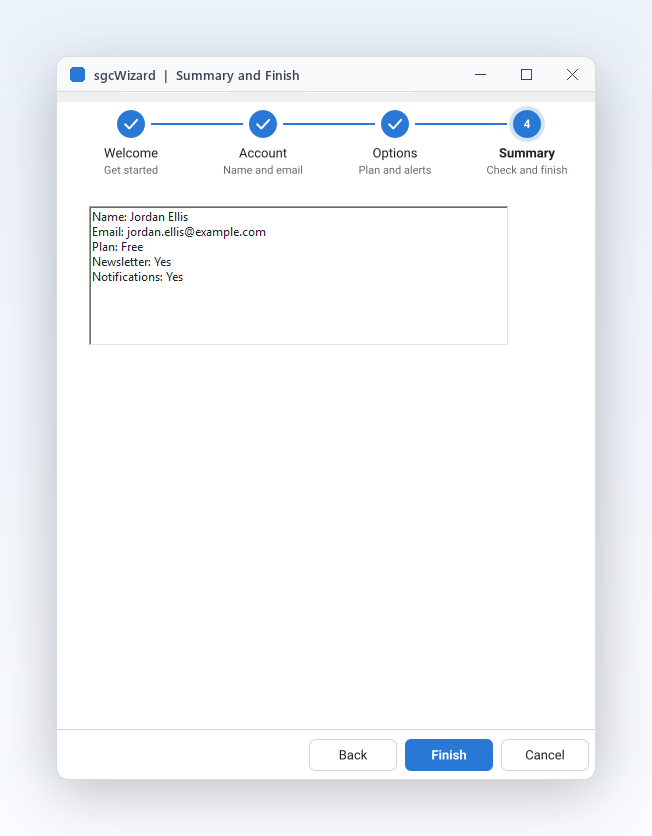
Four pages, Welcome, Account, Options and Summary. OnBeforePageChange vetoes Next until the name and e-mail are valid, a check box skips the Options page, OnPageChanged fills the summary and OnFinish shows it. A theme switch and a StepperPosition combo let you try every layout.

Stepper

Stepper

Two standalone TsgcVCLStepper controls, horizontal and vertical, with the same five steps. AutoStates completes the steps before the active one, buttons mark a step as error or skipped, and a click on a completed step moves both steppers back.

OnboardingFMX

The Onboarding flow with TsgcFMXWizard and four TsgcFMXWizardPage children: the same validation veto, the same skipped Options page, a summary on Finish and a dark theme check box. Delphi only.

Compiled demos

Ready to run executables of every sgcUI product, nothing to install.

Download sgcUI_bin.zip →

Where sgcWizard Is Included

sgcWizard is part of sgcUI Enterprise, and it is also sold on its own. sgcWizard is also included in the All-Access bundle.

sgcWizard single package

€149 / developer, full source code, 1 year of updates.

Buy sgcWizard → See pricing →

sgcUI Enterprise

All 14 sgcUI products, from €699.

See Enterprise →

sgcWizard for .NET

esegece.sgcWizard.WinForms, .Wpf and .Avalonia on NuGet, same price as Delphi. The free Community edition (esegece.sgcWizard.Community) has every feature, only the trial notice differs.

Buy sgcWizard .NET →

Registered, Trial and Community builds all include every sgcWizard feature. Only the trial notice differs.

FeatureCommunity (free)Registered
Wizard with pages and the stepper band✓✓
Validation with OnBeforePageChange✓✓
Skipped pages and the five step states✓✓
Standalone stepper✓✓
Button captions, light and dark themes, accent colour✓✓
Headless PNG and SVG output✓✓

Supported Frameworks and Platforms

Components in sgcWizard

TsgcVCLWizard and TsgcVCLWizardPage

The VCL wizard and its pages. A component editor adds pages at design time, from the SGC Wizard palette page.

TsgcFMXWizard and TsgcFMXWizardPage

The same wizard for FireMonkey on Windows, macOS, iOS, Android and Linux (FMXLinux).

TsgcVCLStepper and TsgcFMXStepper

The standalone stepper control, horizontal or vertical, for any multi step flow.

TsgcStepperModel

The framework neutral model behind both controls: steps, states and layout, with sgcWizardSaveToPNG and sgcWizardSaveToSVG for headless output.

.NET controls

TsgcWinFormsWizard, TsgcWpfWizard and TsgcAvaloniaWizard, each with its page and stepper classes.

Two demos in every language

Onboarding, a four page sign up with validation, and Stepper, a standalone stepper with states.

TargetComponentPlatforms
Delphi 7 to 13, VCLTsgcVCLWizard, TsgcVCLStepperWin32, and Win64 from XE2
Delphi XE6 to 13, FireMonkeyTsgcFMXWizard, TsgcFMXStepperWindows, macOS, iOS, Android and Linux (FMXLinux)
C++ Builder 2007 to 13TsgcVCLWizard, TsgcVCLStepperGenerated .hpp headers and static libraries
Delphi 10.2 to 13, framework neutralTsgcStepperModelLinux64, for example to render a stepper to PNG or SVG on a server
.NETTsgcWinFormsWizard, TsgcWpfWizard, TsgcAvaloniaWizardWinForms, WPF and Avalonia

Frequently Asked Questions

Yes. OnBeforePageChange fires before every move, from the buttons, the keyboard, a click on a step or your own code. It receives the page being left and the page about to open, and setting aAllow to False keeps the user where they are. Finish fires it too, with PageCount as the target, so the last page is validated the same way.

Yes. Drop a TsgcVCLWizard or a TsgcFMXWizard on a form, right click it and choose Add Page. Each page is designed like any other container, with your own controls. The Next Page and Previous Page verbs, or a click on a step of the band, show the other pages in the designer.

Yes. sgcWizard is built from one source, and Registered, Trial and Community all have every feature: the wizards, the steppers, validation, skipped pages, the step states, the themes and the headless PNG and SVG output. Community is the free esegece.sgcWizard.Community package on NuGet.

Yes. TsgcWpfWizard and TsgcAvaloniaWizard come with their pages and steppers, and their properties are dependency properties and Avalonia properties you can bind to a view model. In these two hosts a page holds one child, usually a panel or a grid. WinForms has TsgcWinFormsWizard with container pages, as in the VCL.

Yes. TsgcVCLStepper, TsgcFMXStepper and the .NET steppers are standalone controls with the same five states. Put one above an existing form for a checkout, an order status or a ticket lifecycle, set ActiveIndex from your code, and turn on Clickable to let users go back to a completed step.

Yes. BackCaption, NextCaption, FinishCaption and CancelCaption are published properties, so they are translated with the usual IDE resource tools or set in code. They are stored only when they differ from the default, and the buttons grow with longer captions. The step labels come from the captions and descriptions of the pages.

The VCL wizard and stepper support Delphi 7 to 13 on Win32 and Win64, and C++ Builder 2007 to 13. FireMonkey support starts at Delphi XE6 for Windows, macOS, iOS, Android and Linux through FMXLinux. The headless renderer also builds for Linux64 from Delphi 10.2.

sgcWizard Help

3,000+Developers
20+Years
761+Components
30+API Integrations
5Platforms
30-Day Money-Back GuaranteeNot satisfied? Request a full refund within 30 days of purchase. See refund policy

Try sgcWizard Today

The sgcUI trial includes sgcWizard and every other sgcUI product.