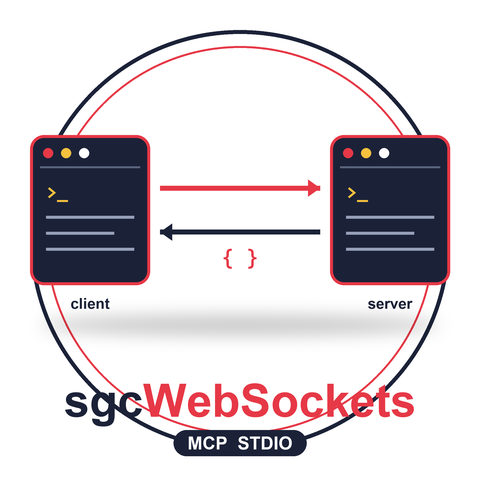
The sgcWebSockets Model Context Protocol (MCP) components already let you build MCP servers and clients in Delphi over HTTP and Streamable HTTP. This release adds a third transport to both sides: stdio. Your MCP server can now run over standard input and output, and your MCP client can launch a server executable and talk to it across that process boundary. No HTTP listener, no port, no TLS configuration for local use.
This matters because stdio is the native way modern AI coding agents connect to MCP servers. Tools like Claude Code, Cursor and other MCP clients spawn a server as a child process and exchange JSON-RPC over its stdin and stdout. With this transport, a Delphi MCP server drops straight into that ecosystem.
What the stdio transport is
In the stdio transport, the server process reads newline-delimited JSON-RPC messages from stdin and writes JSON-RPC responses to stdout, one compact JSON object per line, encoded as UTF-8. The client owns the relationship: it starts the server executable, writes requests to the child's input pipe and reads responses from its output pipe, matching each response to its request by JSON-RPC id. Server-initiated notifications travel the same channel.
Compared with HTTP, there is no socket and no network surface at all. Everything happens through inherited pipes between a parent and a child process on the same machine.
Running an MCP server over stdio
The new TsgcAI_MCP_Server_Stdio host wraps the same MCP core used by the HTTP server, so you register tools, prompts and resources exactly as before. Build it as a console application, register your tools, then call Run to start pumping messages.
uses
  SysUtils, sgcAI_MCP_Server, sgcAI_MCP_Classes, sgcAI_MCP_Types;

type
  TServerHandler = class
    procedure OnRequestTool(Sender: TObject; const aSession: TsgcAI_MCP_Session;
      const aRequest: TsgcAI_MCP_Request_ToolsCall;
      const aResponse: TsgcAI_MCP_Response_ToolsCall);
  end;

procedure TServerHandler.OnRequestTool(Sender: TObject;
  const aSession: TsgcAI_MCP_Session;
  const aRequest: TsgcAI_MCP_Request_ToolsCall;
  const aResponse: TsgcAI_MCP_Response_ToolsCall);
var
  vA, vB: Double;
begin
  if aRequest.Params.Name = 'add' then
  begin
    vA := aRequest.Params.Arguments.Node['a'].Value;
    vB := aRequest.Params.Arguments.Node['b'].Value;
    aResponse.Result.Content.AddText(FloatToStr(vA + vB));
  end;
end;

var
  oServer: TsgcAI_MCP_Server_Stdio;
  oTool: TsgcAI_MCP_Tool;
  oHandler: TServerHandler;
begin
  oHandler := TServerHandler.Create;
  oServer := TsgcAI_MCP_Server_Stdio.Create(nil);
  try
    oServer.ServerInfo.Name := 'MyDelphiServer';
    oServer.ServerInfo.Version := '1.0';

    // register a tool, exactly like the HTTP server
    oTool := oServer.MCPServer.Tools.AddTool('add', 'Adds two numbers');
    oTool.InputSchema.Properties.AddProperty('a', True, aimcpjtNumber);
    oTool.InputSchema.Properties.AddProperty('b', True, aimcpjtNumber);

    oServer.MCPServer.OnMCPRequestTool := oHandler.OnRequestTool;

    // read JSON-RPC from stdin, write responses to stdout, blocks until EOF
    oServer.Run;
  finally
    oServer.Free;
    oHandler.Free;
  end;
end.
One rule when building a stdio server: stdout is the protocol channel, so never write banners or logs to it. Send any diagnostics to stderr or a file instead.
Connecting an MCP client over stdio
On the client, you keep the same public API. Select the stdio transport and tell the client which executable to launch through the new StdioOptions. The client spawns the process, performs the initialize handshake and then exposes tools, prompts and resources just like the HTTP client.
uses
  sgcAI_MCP_Client, sgcAI_MCP_Types;

var
  oClient: TsgcWSAPI_Client_MCP;
begin
  oClient := TsgcWSAPI_Client_MCP.Create(nil);
  try
    // select the stdio transport and point it at the server executable
    oClient.MCPOptions.Transport := aimcptrStdio;
    oClient.MCPOptions.StdioOptions.Command := 'C:\MyServer\MyDelphiServer.exe';
    oClient.MCPOptions.StdioOptions.Arguments := '--stdio';
    oClient.MCPOptions.StdioOptions.WorkingDir := 'C:\MyServer';
    oClient.MCPOptions.StdioOptions.Timeout := 20000;

    // the client launches the server and runs the MCP handshake
    oClient.Initialize;

    // discover tools and call one, the result arrives in OnMCPResponseTool
    oClient.ListTools;
    oClient.RequestTool('add', BuildArguments(2, 3));
  finally
    oClient.Free;
  end;
end;
The response is delivered through the usual OnMCPResponseTool event, and server notifications arrive through OnMCPLoggingMessage, OnMCPProgress and the other notification events, identical to the HTTP transport. StdioOptions also accepts Environment entries when the child process needs specific environment variables.
Use it with Claude Code and other AI agents
Because the transport follows the MCP stdio convention, any compliant MCP client can launch your Delphi server. To register it with Claude Code, add an entry to the MCP configuration that points at your executable.
{
  "mcpServers": {
    "my-delphi-server": {
      "command": "C:\\MyServer\\MyDelphiServer.exe",
      "args": ["--stdio"]
    }
  }
}
The agent spawns the server on demand, lists the tools you registered and calls them while it works. Your Delphi code becomes a first-class tool provider for AI assistants, with no web server to deploy or secure.
Advantages
- No network surface. There is no port to open, no HTTP listener and no TLS or authentication to configure for local use. Communication is pure stdin and stdout.
- The native local pattern. AI coding tools such as Claude Code and Cursor spawn MCP servers over stdio, so your server integrates without an adapter.
- Clean lifecycle and isolation. The server lives and dies with the client process. One server per client, no shared state and no leftover listeners.
- Same MCP API. Tools, prompts and resources are registered the same way as the HTTP server. Switching transport on the client is a single property.
- Ideal for desktop and offline use. When exposing an HTTP endpoint is unnecessary or undesirable, stdio keeps everything inside the local machine.
- Robust framing. Newline-delimited JSON-RPC over UTF-8, with a leading byte-order mark tolerated on inbound messages for broad client compatibility.
Upgrading
The stdio transport is a drop-in addition. Existing HTTP and Streamable HTTP servers and clients are unchanged, and the new transport reuses the same tool, prompt and resource model, so there is nothing to migrate. To adopt it, build your server as a console application around TsgcAI_MCP_Server_Stdio, or set Transport to aimcptrStdio on the client. You can download the latest version from the sgcWebSockets download page.
Questions, feedback or migration help? Get in touch, you will get a reply from the people who wrote the code.